For home service pros and the people who run their WordPress sites.
Install the CaseFol.io WordPress plugin.
You download the plugin from your CaseFol.io account, install it on your WordPress site, and connect the two with a key.
The site needs WordPress 6.0 or later and PHP 7.4 or later. Syncing jobs needs an active subscription or trial.
Want us to set it up with you? Book a time and we'll walk through it on your site.
14-day free trial. Card required. Money-back guarantee on your first payment.
What you need
- A WordPress site running WordPress 6.0 or later, with PHP 7.4 or later.
- Permission to upload and activate plugins on that site.
- A CaseFol.io account. Start a 14-day free trial, or sign in if you already have one. You download the plugin from the logged-in app. It's not on WordPress.org.
- One CaseFol.io account connects to one WordPress site. If you run more than one client site, each site needs its own account.
- The plugin is free to install from the app. Syncing jobs needs an active subscription or trial.
How to install it
1
Start a CaseFol.io account
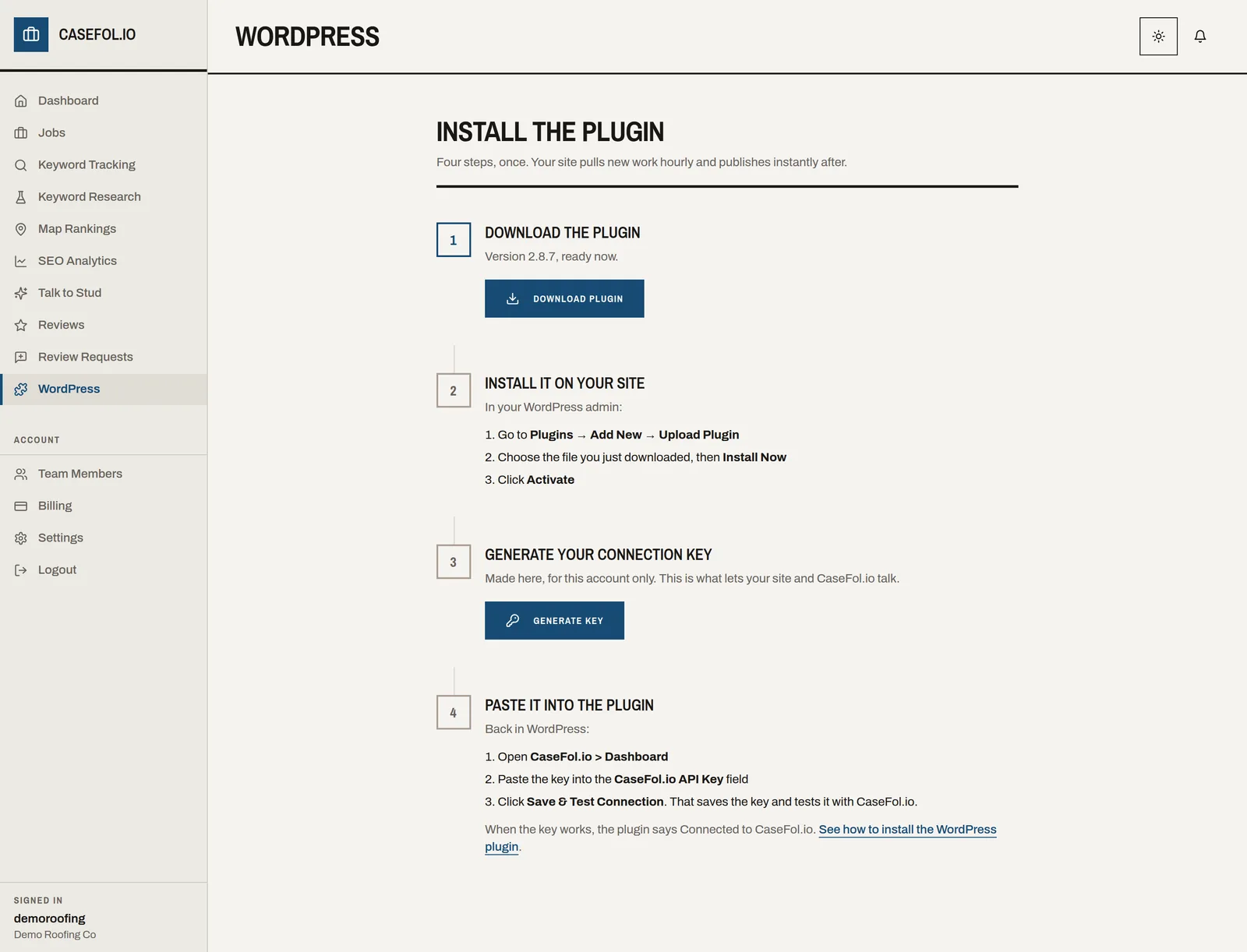
Create an account, or sign in if you already have one. In the left menu, open WordPress. That page is titled Install the plugin.
2
Download the plugin
Click Download plugin. You'll get a file named casefolio-wp-plugin.zip. The plugin isn't on WordPress.org. Later updates come from casefol.io and show up in your usual WordPress Plugins screen.
3
Install it on your WordPress site
In your WordPress admin, go to Plugins, then Add New, then Upload Plugin. Choose the file you just downloaded, click Install Now, then Activate. The plugin's name in WordPress is CaseFol.io WordPress Integration.

4
Generate your connection key
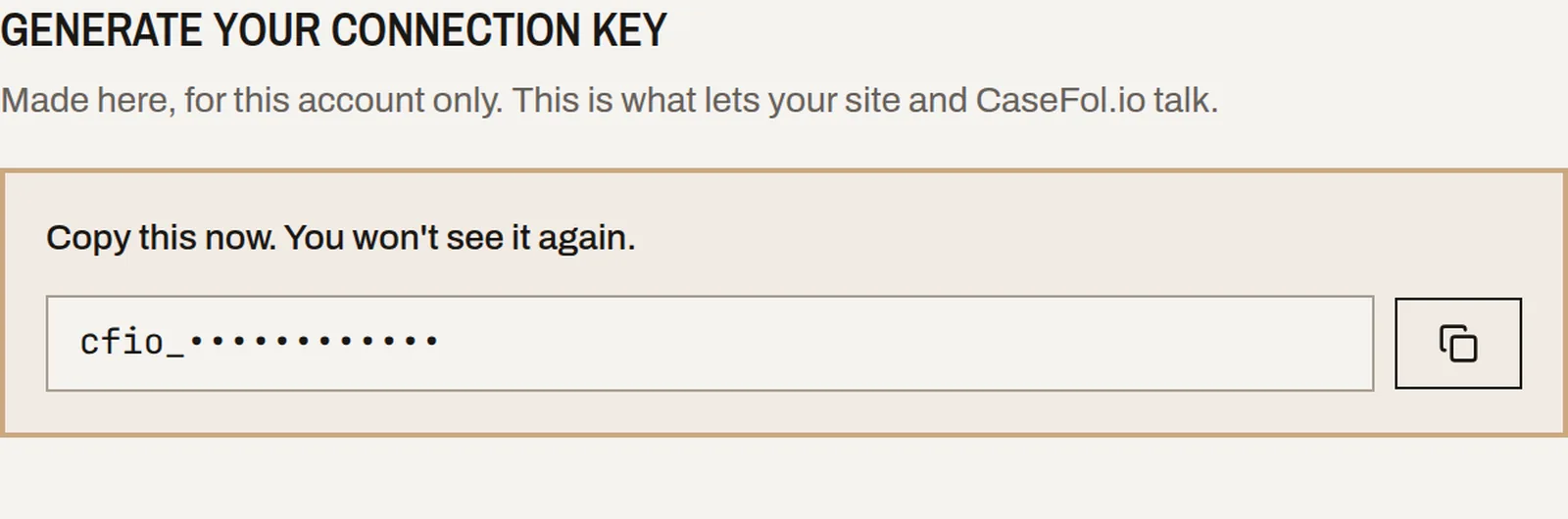
Back in CaseFol.io, still on the WordPress page, click Generate key. Copy it now. You won't see it again.
5
Paste the key and test the connection
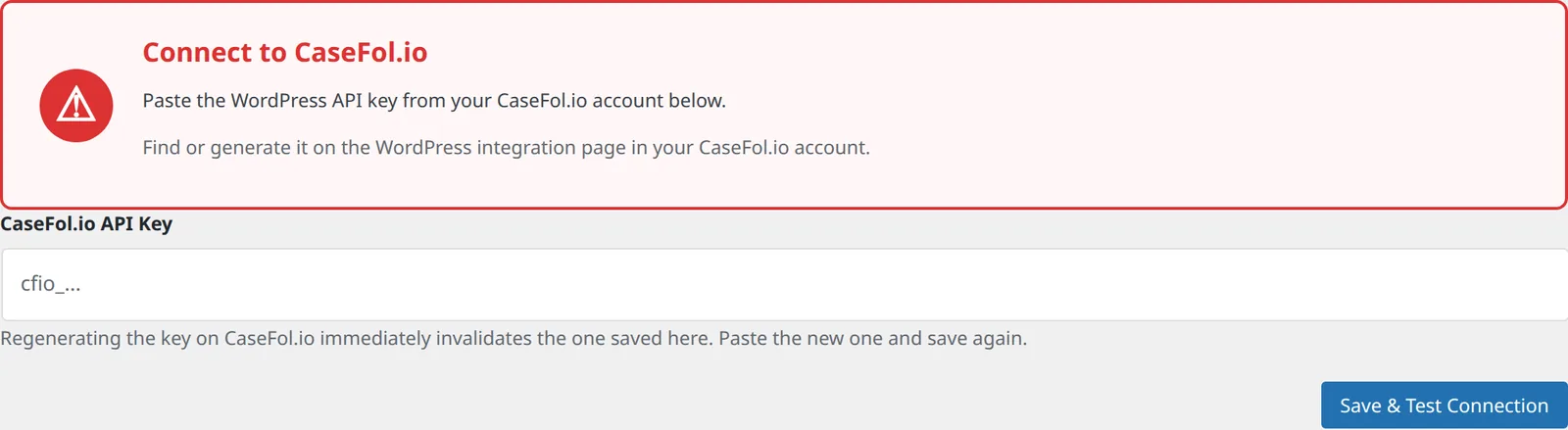
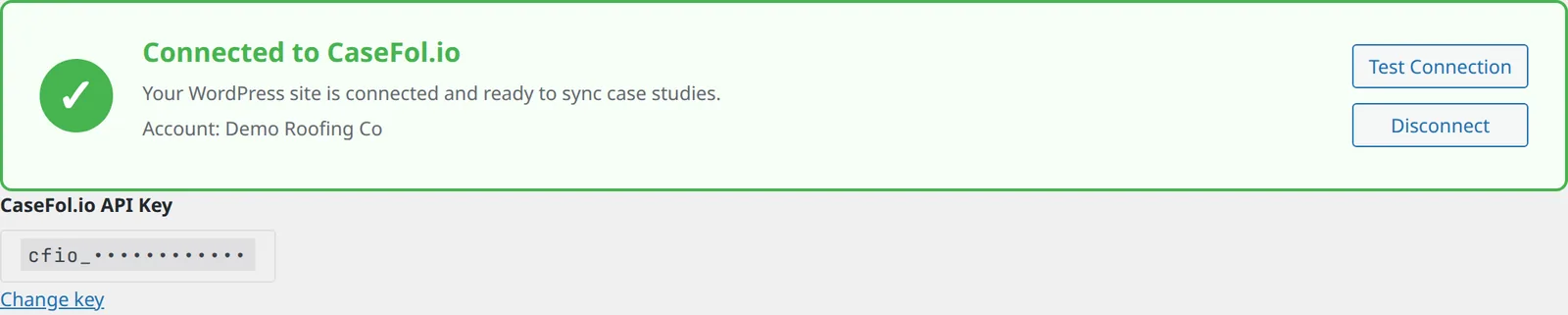
In your WordPress admin, open CaseFol.io > Dashboard. Paste the key into the CaseFol.io API Key field, then click Save & Test Connection. When the key works, you'll see Connected to CaseFol.io, and it says Connection successful! Your API key is valid.
After you're connected
Your site checks for new jobs every hour. When you publish a job in CaseFol.io, its page goes to your WordPress site right away. Nothing goes live until you publish. You can also click Full Sync on the plugin Dashboard to bring existing jobs across now, instead of waiting for the hourly check. Keep the tab open while Full Sync runs.
Edit job pages in CaseFol.io. If you edit them in WordPress, the next sync overwrites the title, content, excerpt, status, and CaseFol.io fields.
Want us to set it up with you? Book a 15-minute demo.
What the plugin adds
- A Case Studies post type.
- Each published job is a page at
/service-area/work/{state}/{city}/{slug}. - A showcase page at
/service-area, or/showcaseif that first address is already in use. - Shortcodes you can put on any page:
[casefolio_map],[casefolio_loop],[casefolio_single],[casefolio_gallery],[casefolio_showcase], and[casefolio_job]. - JSON-LD schema on every job page.
Questions about installing
- Is the plugin on WordPress.org?
- No. Download the zip from your logged-in CaseFol.io account. Updates come from casefol.io, through the normal WordPress plugin update screen.
- What does my WordPress site need?
- WordPress 6.0 or later and PHP 7.4 or later. You need permission to upload and activate plugins.
- When do jobs show up on my site?
- When you hit Publish in CaseFol.io, the page goes to WordPress right away. Your site also checks for new jobs every hour.
- Should I edit job pages in WordPress?
- Edit them in CaseFol.io. You can edit a page in WordPress, but the next sync overwrites the title, content, excerpt, status, and CaseFol.io fields.
- What if I cancel?
- New jobs stop syncing. Pages you've already published stay up on your WordPress site, as long as you keep the CaseFol.io WordPress plugin installed.
- What if I deactivate or remove the plugin?
- Your job pages stop loading and show a page not found error. The posts stay in your WordPress database, and turning the plugin back on brings them back.
- Can one account connect to more than one WordPress site?
- No. Each WordPress site needs its own CaseFol.io account.
- Does it work with my theme or page builder?
- Job pages use your theme's own single-page template. CaseFol.io puts the job layout into the page content. You can use the default CaseFol.io look, or a site look that lets your theme style form controls. Shortcodes work on any page. There are no Elementor, Divi, or Gutenberg blocks. We don't claim it works with every theme. Book a 15-minute demo and we'll look at your WordPress site with you.
- Who can install it, and is there setup help?
- Anyone who can add a plugin on the WordPress site. That might be the owner, a site admin, a marketer, or the agency that runs the site. Want us to set it up with you? Book a 15-minute demo. Enterprise yearly plans include WordPress setup help.